Normal User
Normal User Guide
Dashboard
After logging in with a normal user account, you will be redirected to the Dashboard.
The Dashboard provides an overview of your assigned tickets. The My Tickets section displays the total number of tickets associated with your account.
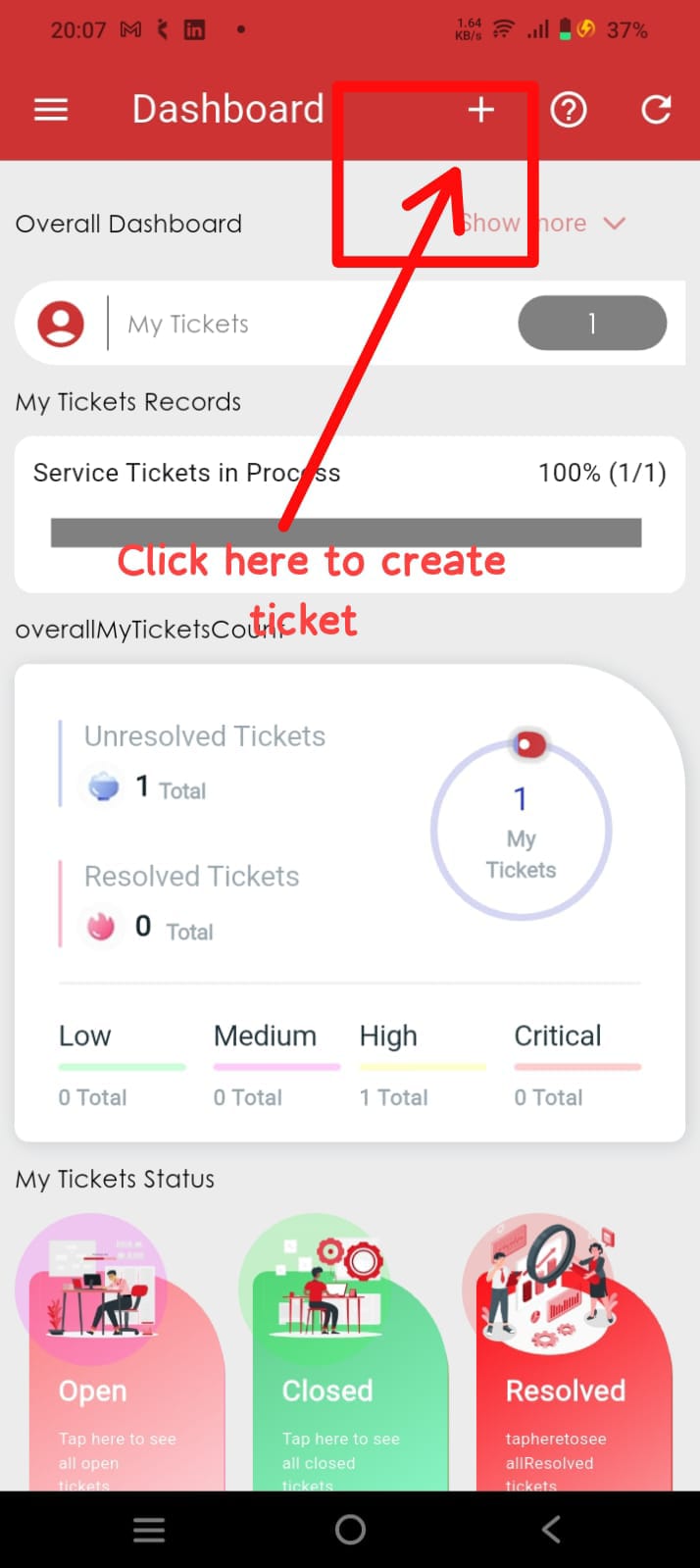
Side Menu Access
To access the application menu, tap the menu icon in the top-left corner after logging in.
- Sign in to the IT Asset Management (ITM) app.
- Tap the Menu icon.
- View the modules and features available based on your user permissions.
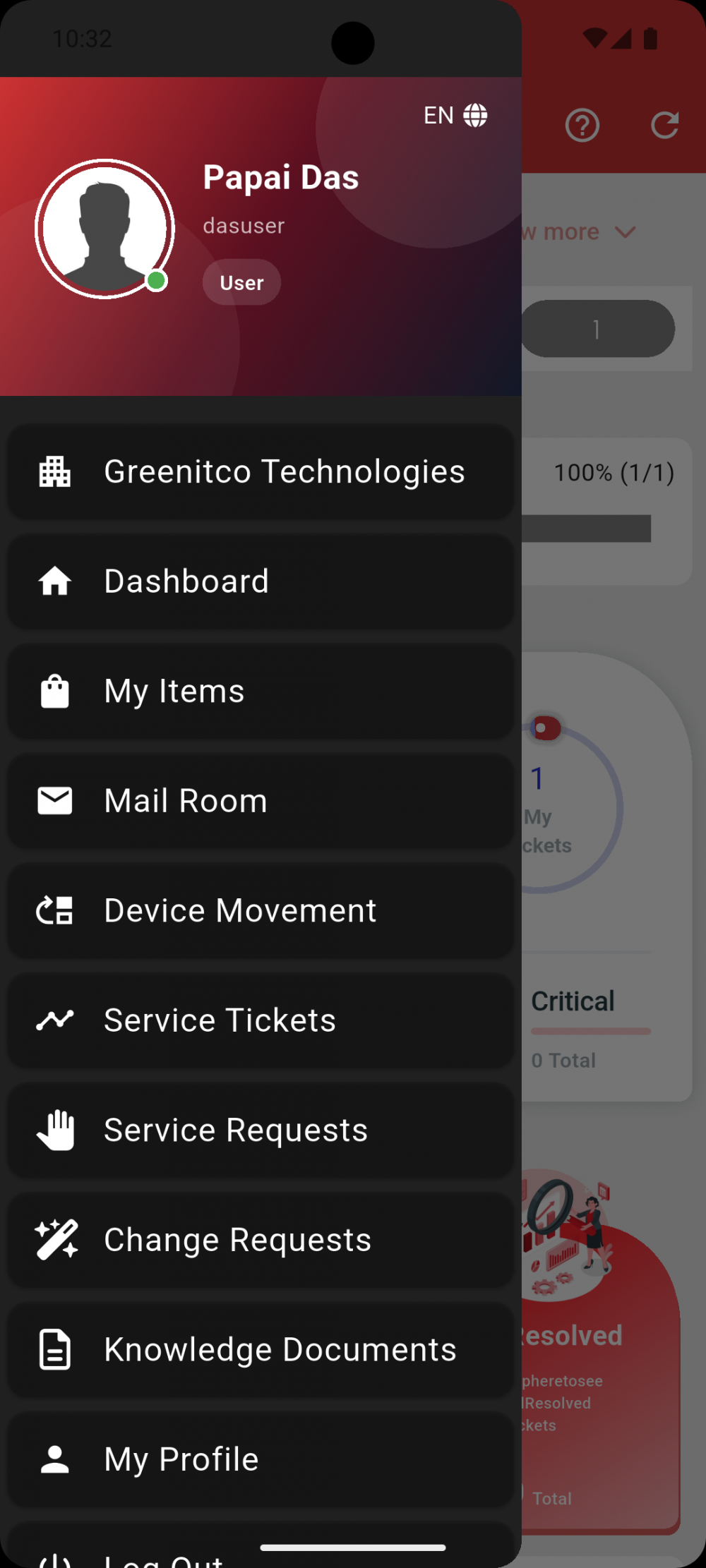
The side menu displays only the modules and features that are assigned to your normal user account.
Service Ticket List
To view your tickets, open the Service Ticket module from the side menu.
- Sign in to the app.
- Tap the Menu icon.
- Select Service Ticket.
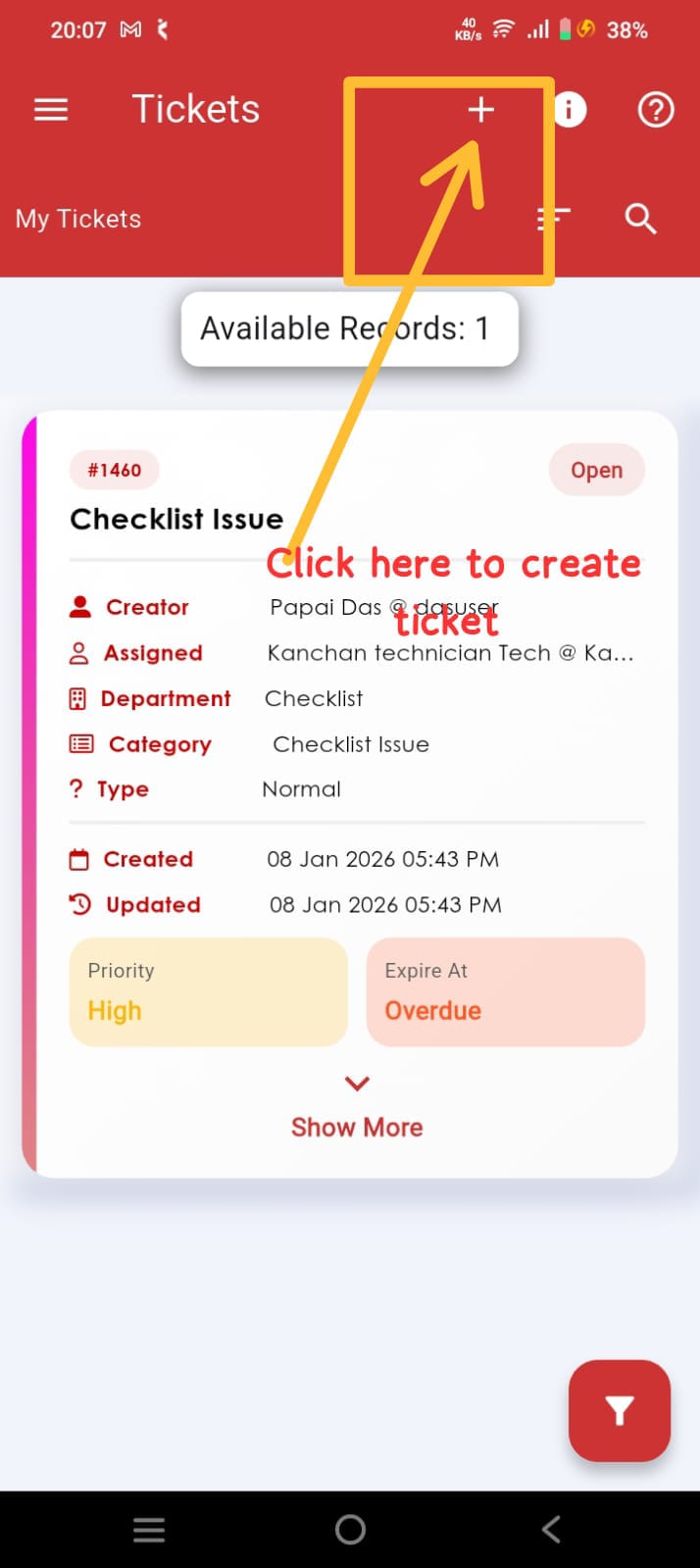
The Service Ticket screen displays only the tickets that are assigned to you (My Tickets).
Create a Service Ticket
Create a new service ticket from the Service Ticket screen.
- Open Service Ticket from the side menu.
- Tap the + (Add) icon.
- Fill in all the required fields.
- Tap Create.
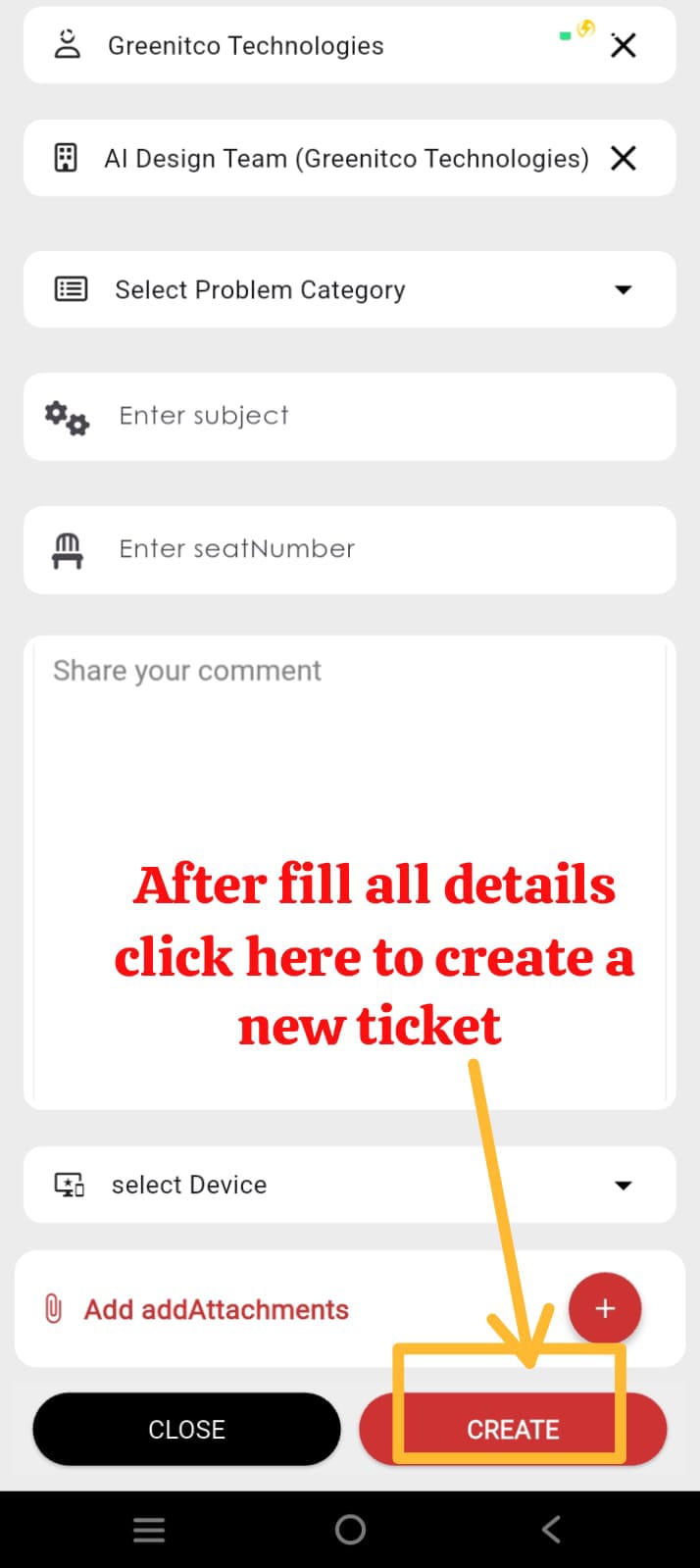
After the required information is entered and the Create button is tapped, the service ticket is created successfully.
View Ticket Details
Open any ticket from the Service Ticket list to view its details.
- Open Service Ticket from the side menu.
- Select a ticket from the list.
- The Ticket Details screen will open.
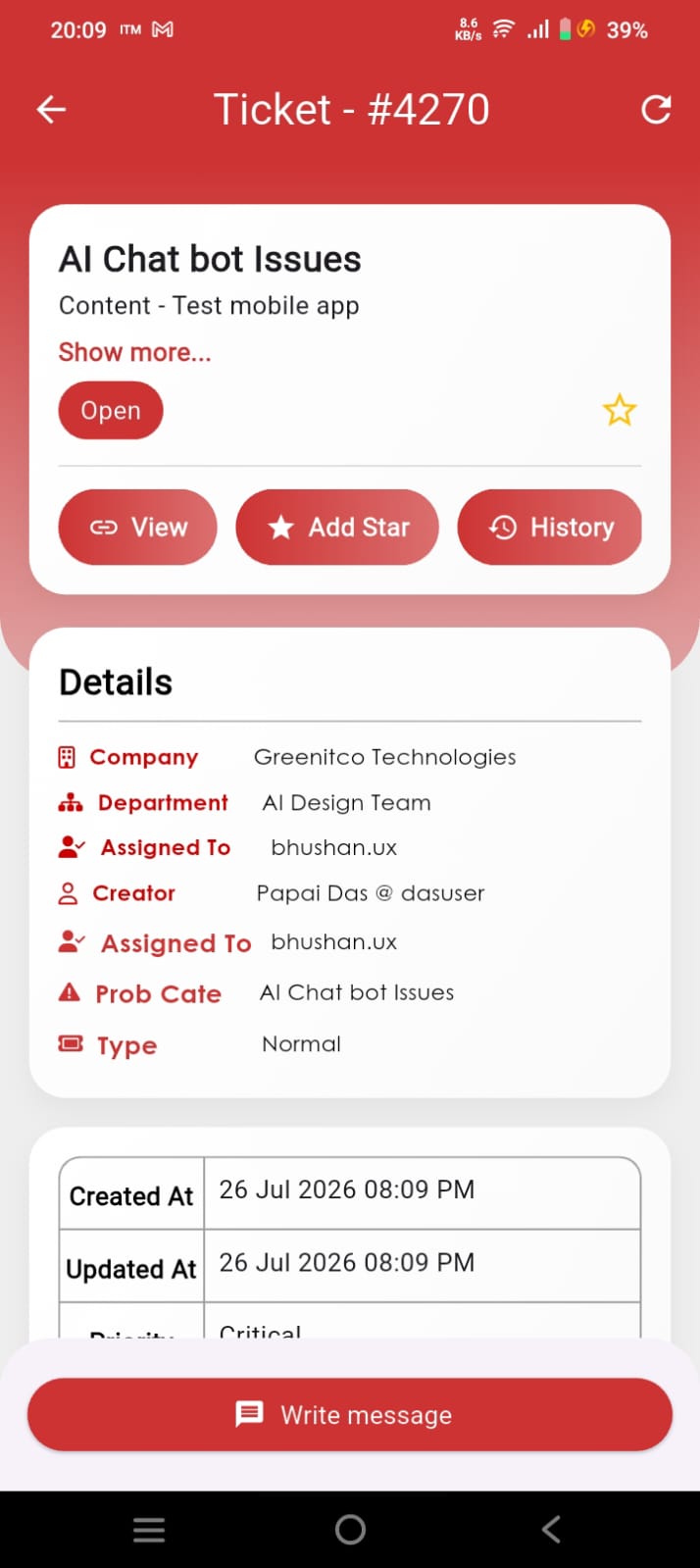
From the Ticket Details screen, you can view ticket information and perform the actions available to a normal user based on your permissions.