Archived Tickets
An Archived Service Ticket is a request that has been moved to a separate set for storage.
Archived tickets cannot be modified, deleted, or moved back to the active state.
They are treated as a separate set with their own search options and reports.
On the ITM Portal, you can view the complete list of archived service tickets.
Go to the left sidebar → Service Tickets → Archived Tickets New
To Filter Service Tickets
Go to the left sidebar → Service Tickets → Archived Tickets New → click on icon.
You can filter by the following:
- Filter By Status
- Filter By Priority
- Filter By Date
- Filter By Date Range
- Filter By Department
- Filter By Problem Category
- Filter By Sub Category
- Filter By Ticket Handler
- Filter By Tag
- Filter By Created Via
- Filter By Location
- Filter By Base Location
- Filter By Creator / Logger
- Filter By Ticket / Service Request
- Filter By VIP Ticket
- Filter By Feedback
- Filter By Ticket Type
- Filter By Custom Field
- Filter By Custom Field Value
- Filter By Merge
- Filter By Star
- Filter By Task

- Click on Filter button after selecting the filters you want to apply.
- Clear button resets the applied filters.
Other Header Options on Archived Service Ticket Page
-
Sort / Order Button ()
Used to change the sorting order of tickets (e.g., newest, oldest, priority). -
Reload Button ()
Clears applied filters or sorting and reloads the default ticket view. -
Export / Download Button ()
Downloads or exports the filtered ticket list. -
Page Size Dropdown ()
Controls the number of tickets displayed per page.Archived Ticket Page Layout (Body Section)
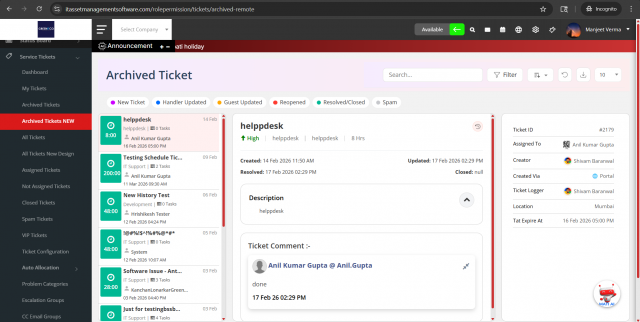
The Archived Ticket page body is divided into three main sections for better ticket management and visibility.
1. Ticket Listing Panel (Left Section)
This section displays the list of archived tickets in a scrollable view.
- Shows ticket subject, department, task count, and assigned user.
- Displays ticket time indicators and status highlights.
- Allows users to select a ticket to view its full details.
- Supports quick visual identification using time badges and color indicators.
2. Ticket Details Panel (Middle Section)
This section shows the complete information of the selected ticket.
- Displays ticket title, priority, category, and SLA time.
- Shows created, updated, and resolved timestamps.
- Contains ticket description and expandable content sections.
- Includes ticket comments history with user details and timestamps.
3. Ticket Metadata Panel (Right Section)
This section provides structured ticket metadata and assignment details.
- Shows Ticket ID and assigned user.
- Displays creator and ticket logger information.
- Indicates ticket source (Created Via).
- Shows ticket location and SLA expiry (TAT Expire At).
- Helps in quick administrative and reporting reference.
These three panels together provide a comprehensive archived ticket review interface, enabling efficient tracking, auditing, and analysis.