Microsoft Login
Login with Microsoft
Sign In Using Your Microsoft Account
After installing the app, open it and follow the steps below to sign in using your Microsoft account.
- Launch the IT Asset Management (ITM) app.
- On the Splash Screen, wait for the app to load.
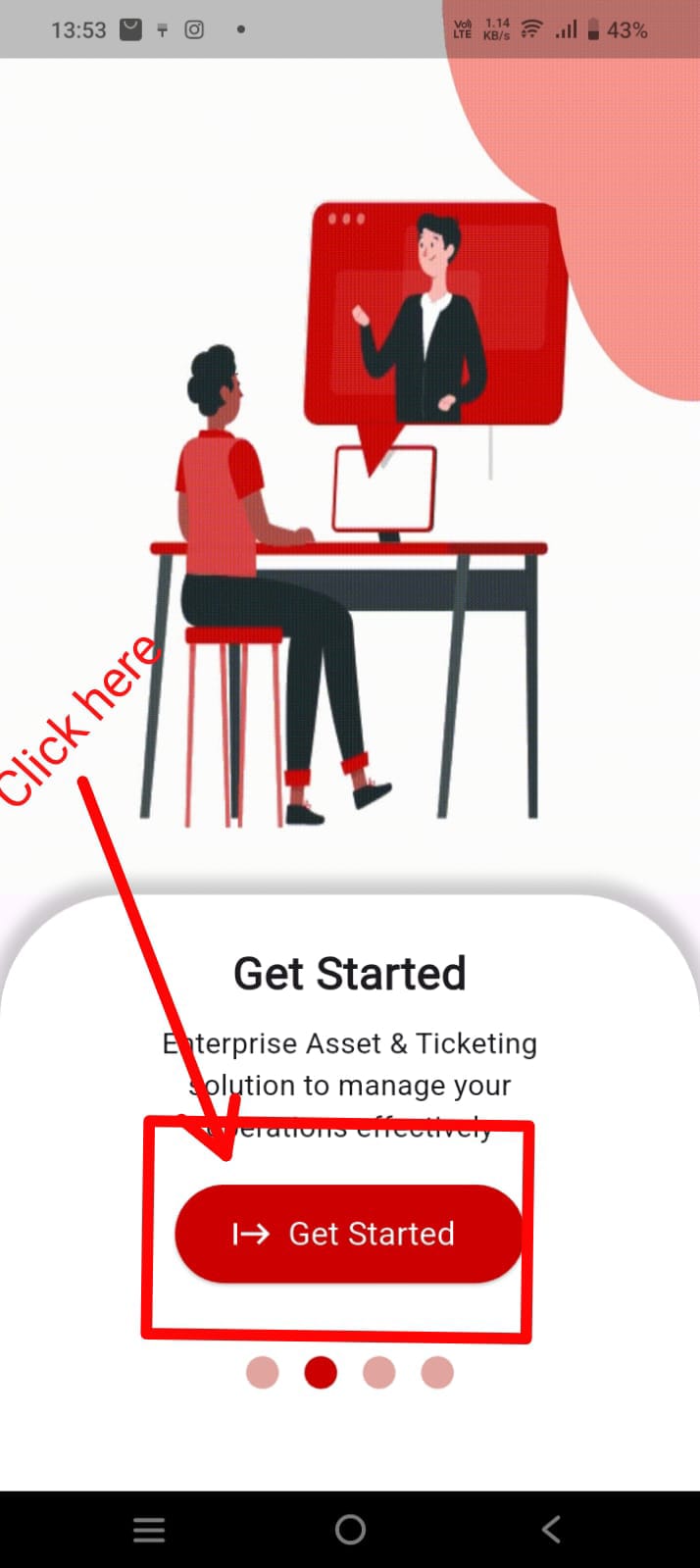
- On the Welcome Screen, tap Get Started.
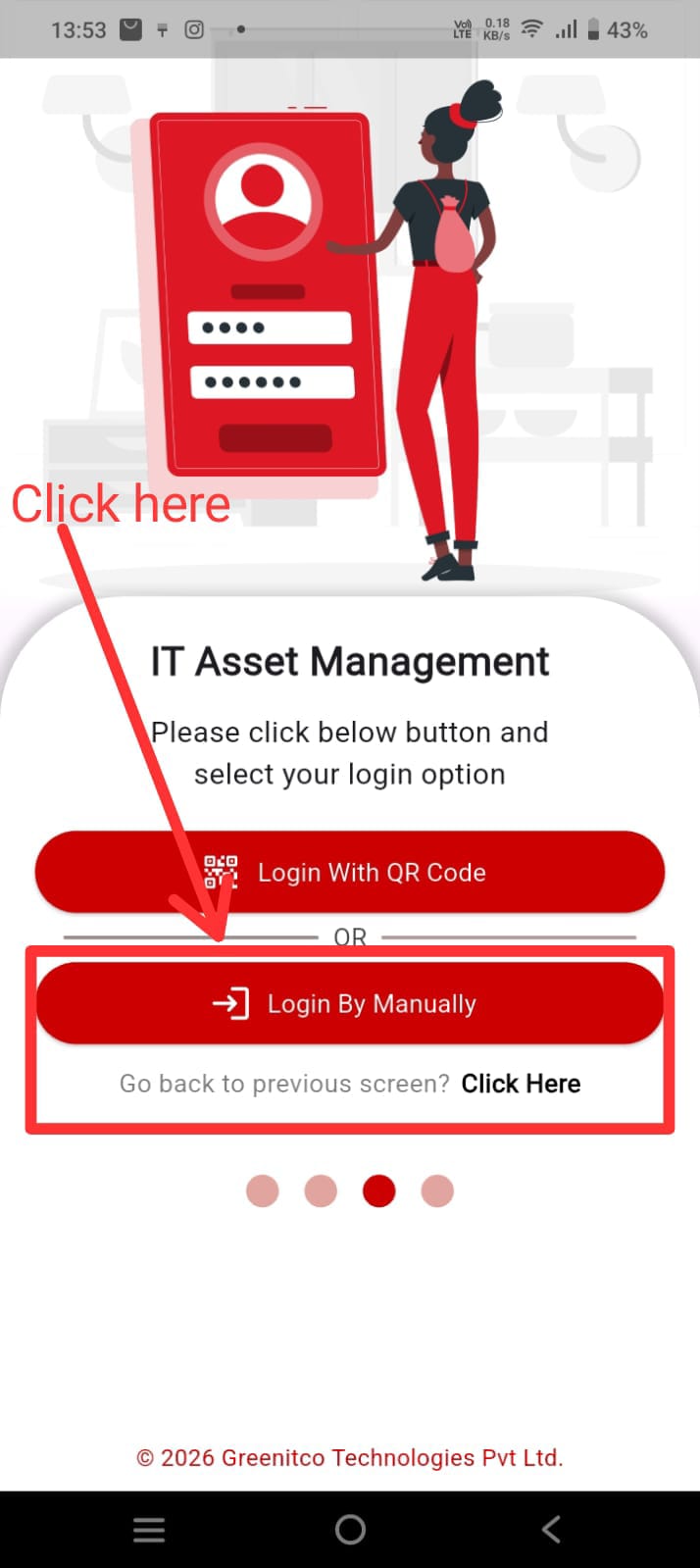
- Tap Login Manually.
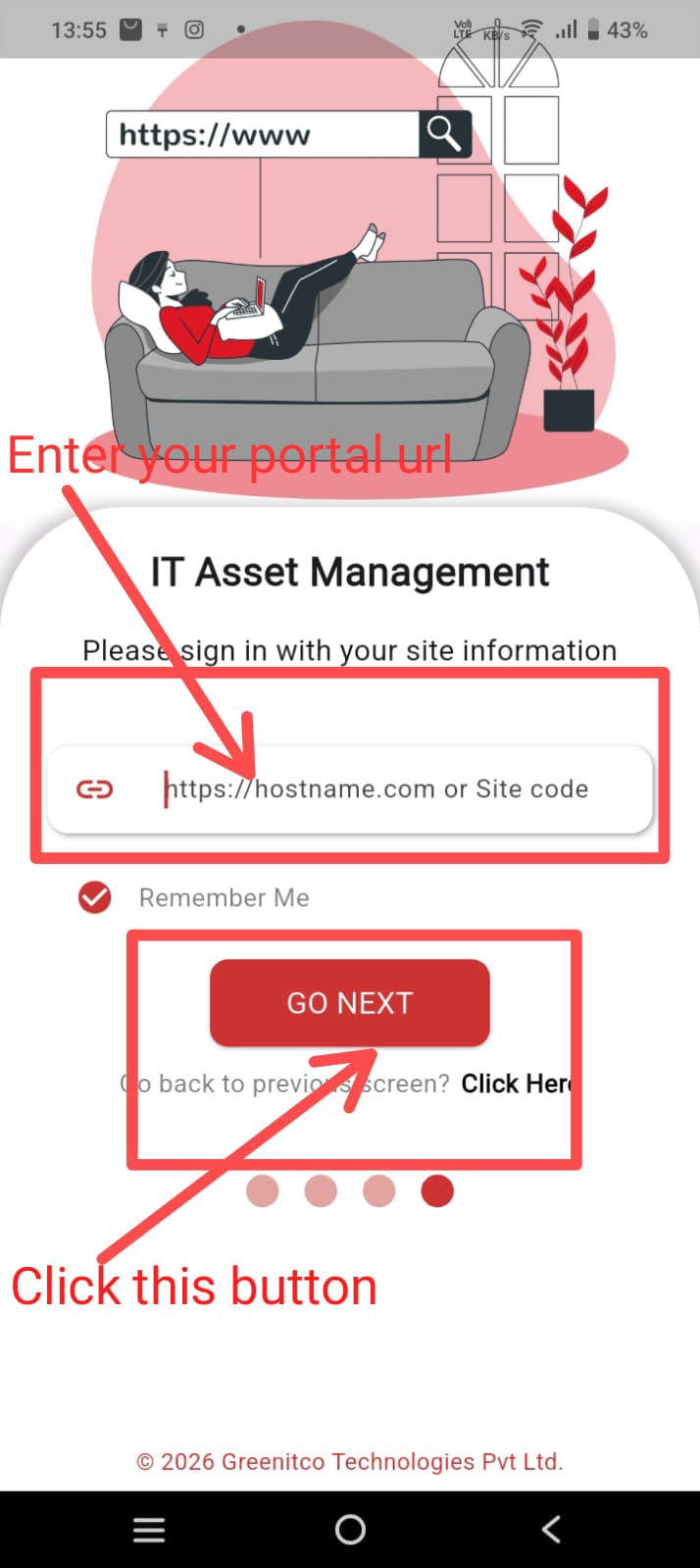
- Enter your Site URL and tap Go Next.
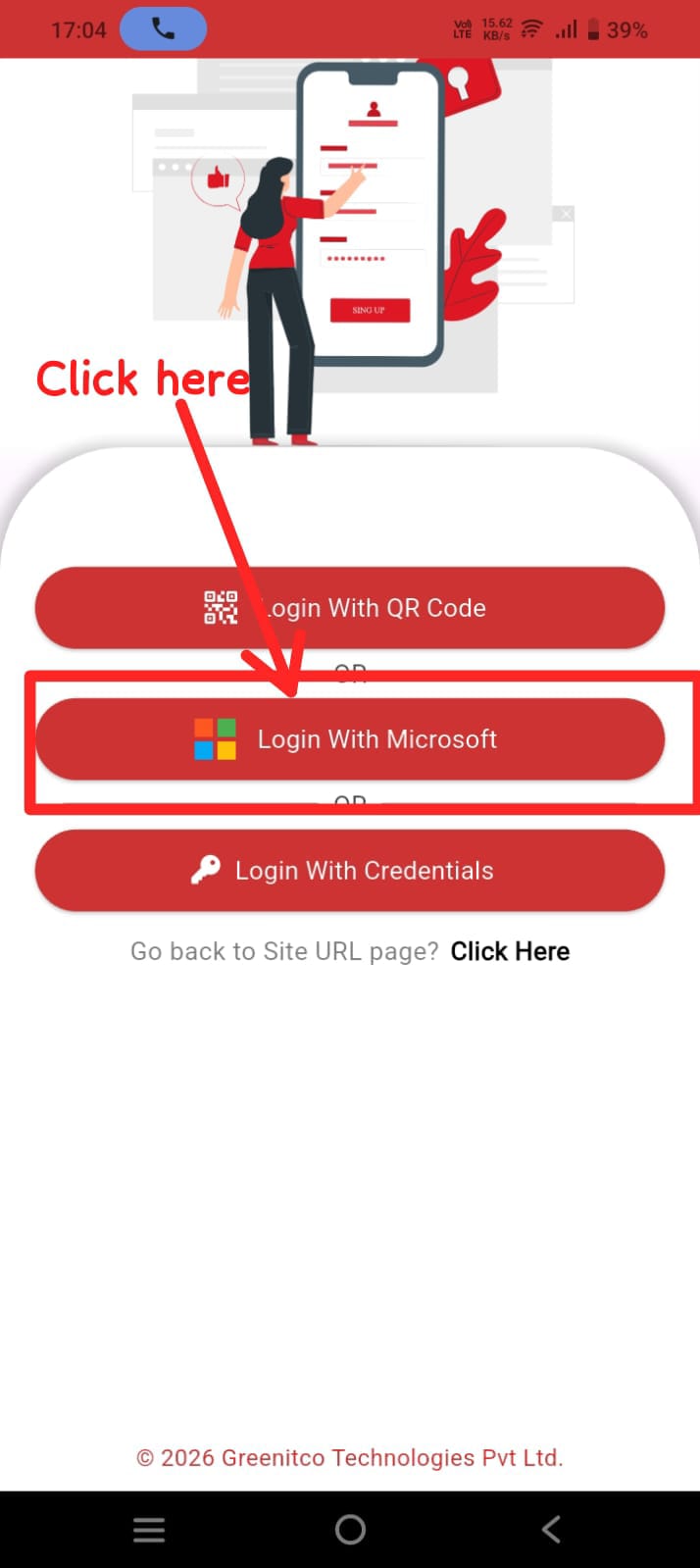
- Tap Login with Microsoft.
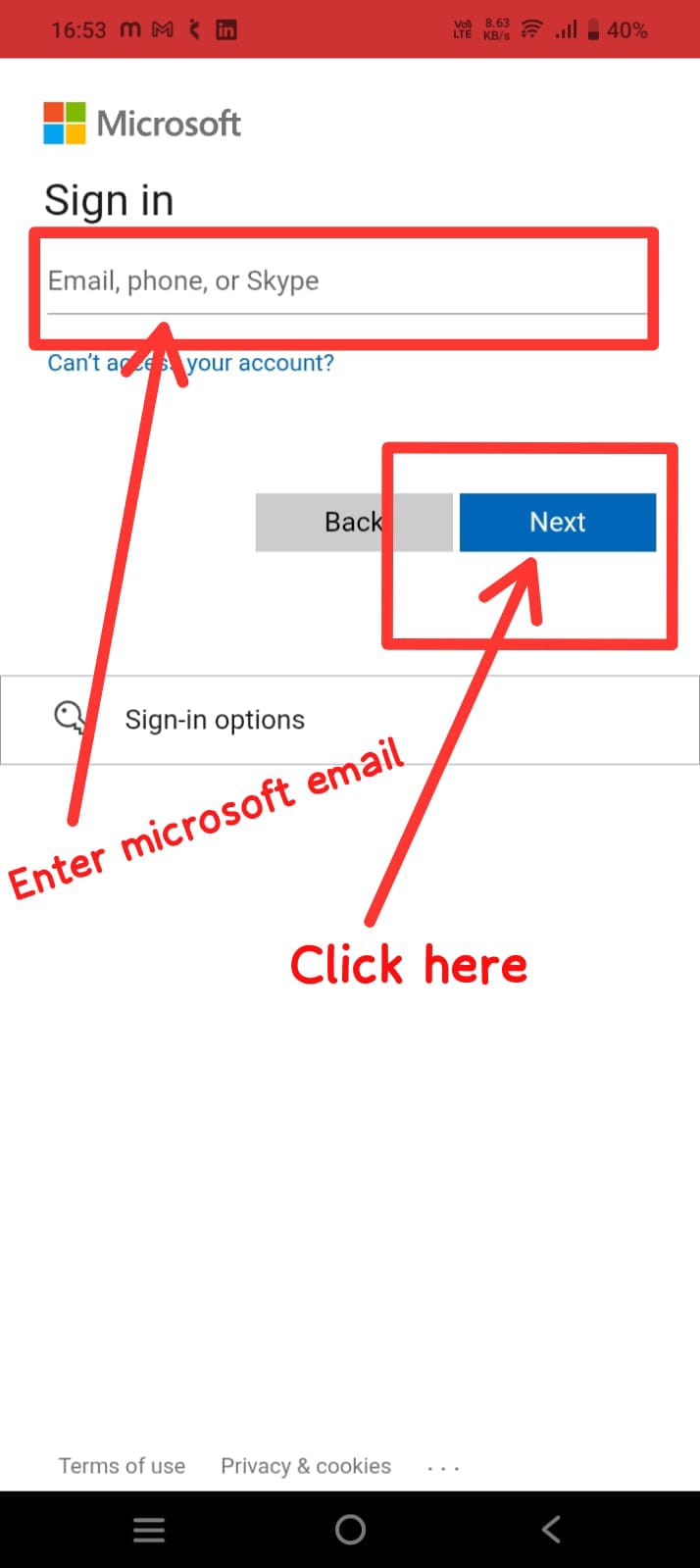
- Enter your Microsoft email address and tap Next.
- Complete the Microsoft authentication process. If prompted, enter your password and complete any required verification.
Login Screens
After Login
Once you have successfully signed in with your Microsoft account, you will be redirected to the Dashboard.
The dashboard menus and available features are displayed based on the modules and permissions assigned to your account.
We are continuously improving our documentation to ensure it meets your needs. This document will be updated regularly, so please check back for the latest information. If you have any questions or encounter any issues, feel free to reach out to us at support@itassetmanagement.in.